Git for Beginners: Basics and Essential Commands
What is Git?
Git is a distributed version control system that helps developers track changes in their code over time.
Before Git, developers often shared project files using pendrives. Because of this, only one person could work at a time, which made the process very slow and time-consuming. If one developer had the pendrive, others had to wait, and multiple people could not access the same project simultaneously.
To solve this problem, Git was created. With Git, many developers can work on the same project at the same time without disturbing each other’s work. Everyone has their own copy of the project, and all changes can be tracked and managed efficiently.
Git was created by Linus Torvalds, the same person who developed the Linux operating system.
Why is Git Used?
Git is widely used because it helps developers:
Track changes in source code
Work on the same project with multiple people
Revert to previous versions if something breaks
Experiment with new features safely using branches
Maintain a clean and organized development workflow
In short, Git makes development collaborative, safe, and efficient.
Git Basics and Core Terminologies
1. Repository (Repo)
A repository is a folder that contains your project files along with Git’s tracking data.
Local Repository – exists on your computer
Remote Repository – exists on platforms like GitHub, GitLab, or Bitbucket
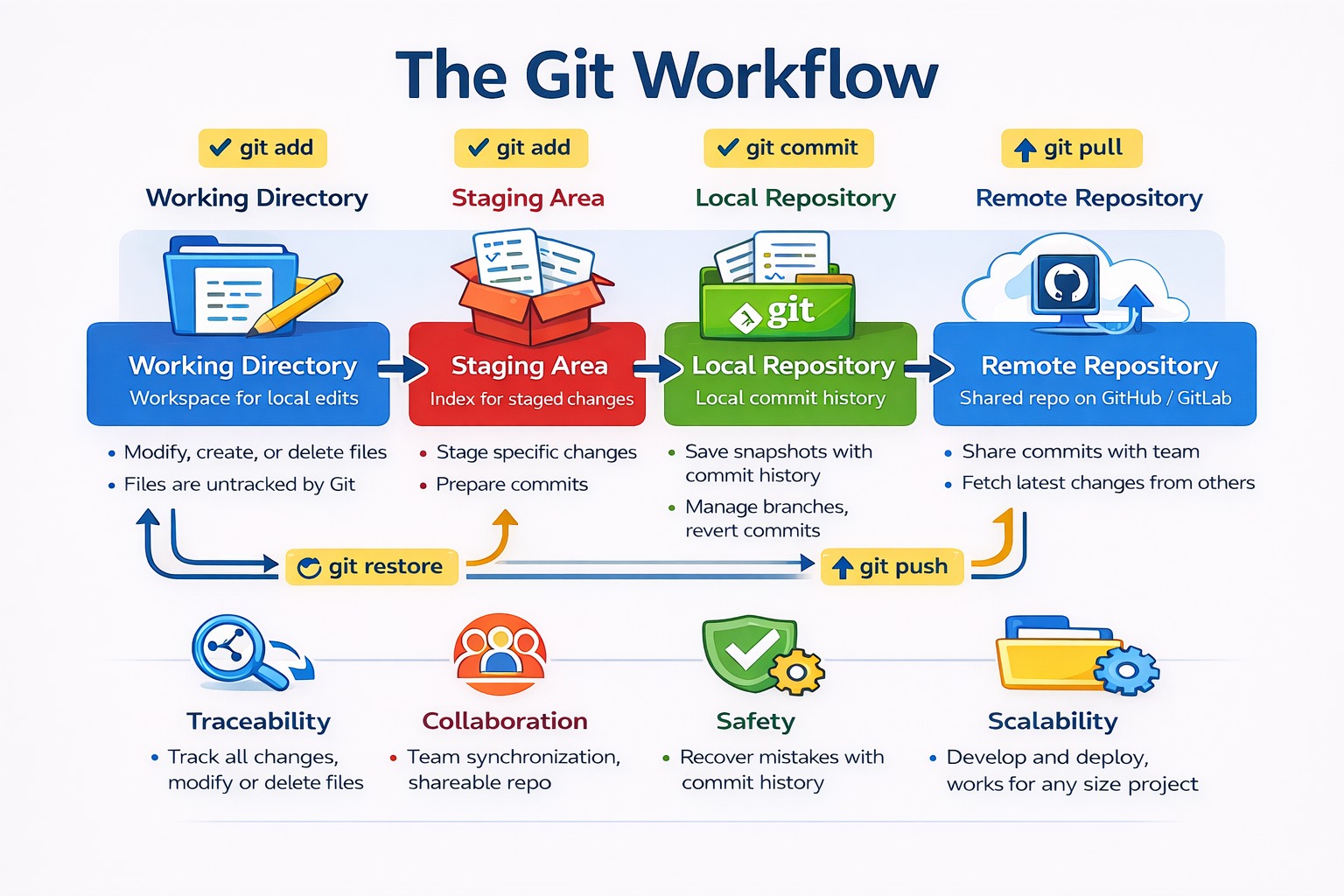
2. Working Directory
This is the actual folder where you create, edit, and delete files.
3. Staging Area
The staging area is a place where changes are prepared before committing. You decide what changes should be saved.
4. Commit
A commit is a snapshot of your project at a specific point in time.
Each commit includes:
A unique ID (hash)
Author information
Date and time
Commit message
5. Branch
A branch is a separate line of development. The default branch is usually called main or master.
Branches allow you to work on features without affecting the main code.
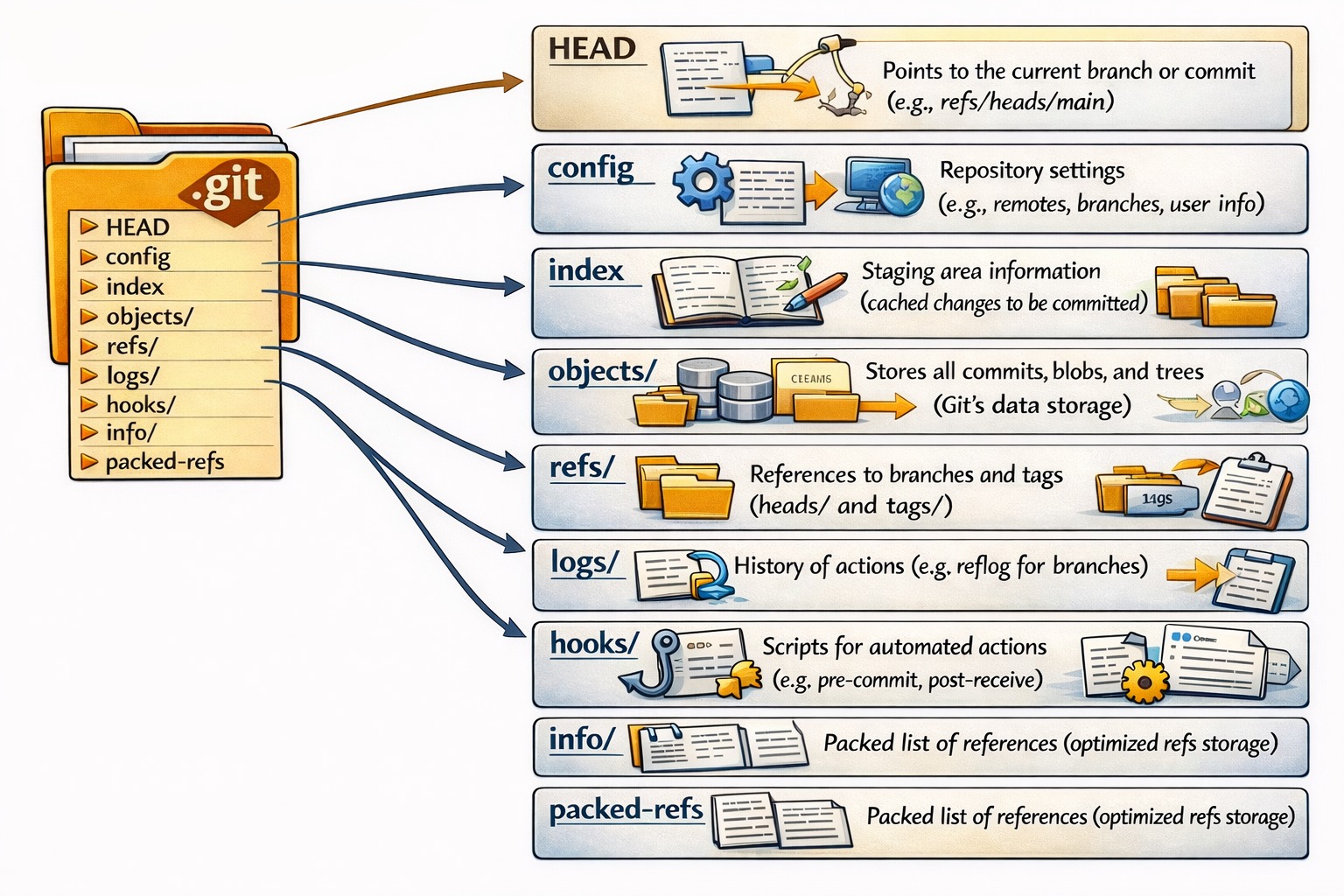
6. HEAD
HEAD is a pointer that represents your current position in the repository. Usually, it points to the latest commit of the current branch.
Common Git Commands
1. Initialize a Repository
git init
Creates a new Git repository in the current folder.
2. Check Repository Status
git status
Shows the status of files (modified, staged, or untracked).
3. Add Files to Staging Area
git add filename
Adds a specific file to staging.
git add .
Adds all files to staging.
4. Commit Changes
git commit -m "Your commit message"
Saves the staged changes permanently to the repository.
5. View Commit History
git log
Displays a list of all commits made so far.
6. Create a New Branch
git branch branch-name
Creates a new branch.
7. Switch Branch
git checkout branch-name
Moves to another branch.
Basic Developer Workflow Using Git
Create a project folder
Initialize Git using
git initCreate or edit files in the working directory
Add files to staging using
git addCommit changes using
git commitCheck history using
git logRepeat the process as development continues
Git Workflow Diagram (Conceptual)
Commit History Flow
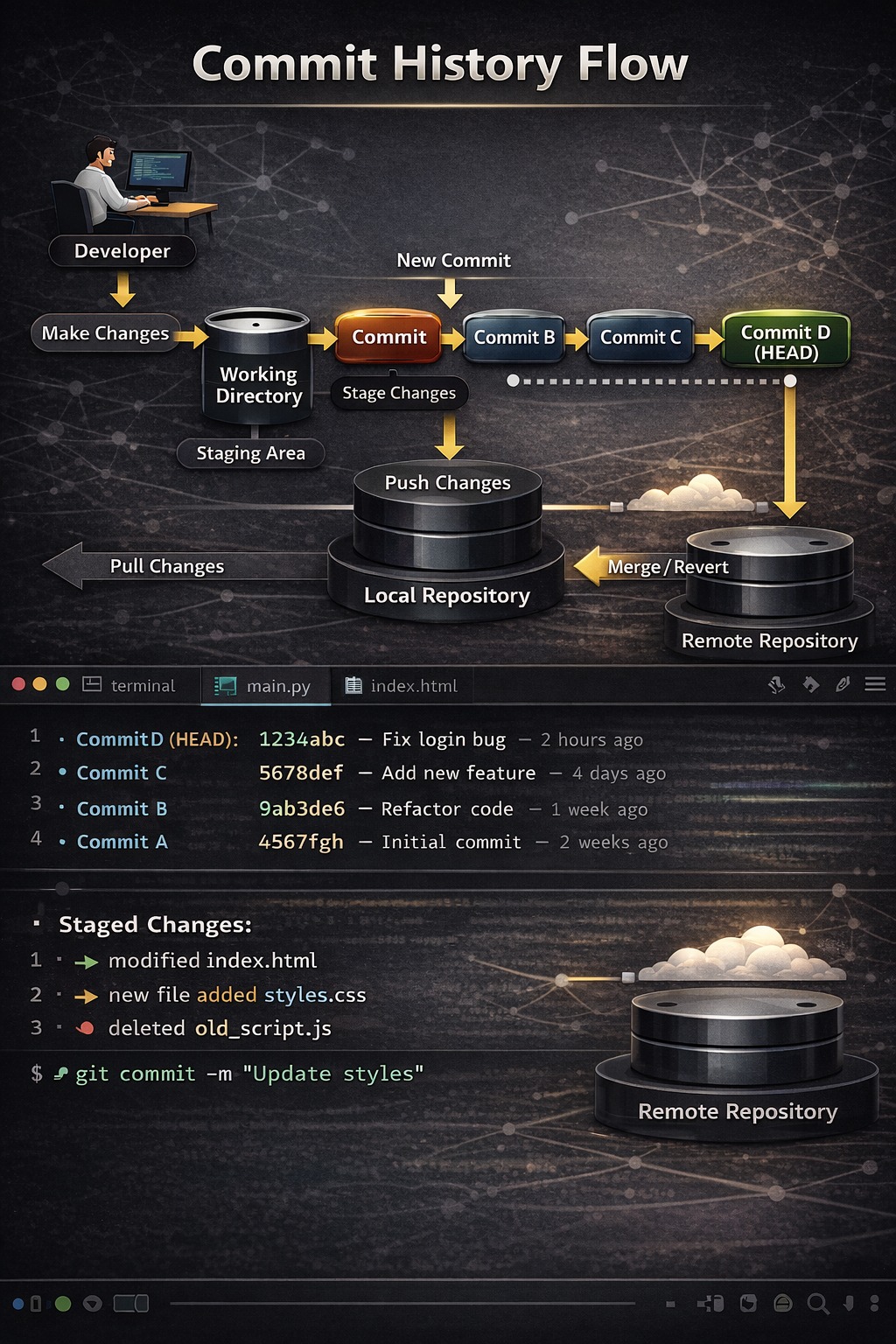
Each commit represents a stable snapshot of the project.
Conclusion
Git is an essential tool for every developer. Understanding Git basics and commands helps you manage code effectively, collaborate with others, and build projects confidently. Mastering Git early in your development journey will make you a better and more professional programmer.
Happy Coding 🚀
Comments
Join the discussionNo comments yet. Be the first to comment.